Register a New Merchant
Warning
API version 1 is now deprecated. It will be supported for the foreseeable future, however any new implementations should use the improved version 2 API.
Create a New Merchant (CP)
Before implementing FraudStop you must first register a merchant. Begin by logging on to the FraudStop portal with your email. If you do not have an account please talk to your contact at Empello.
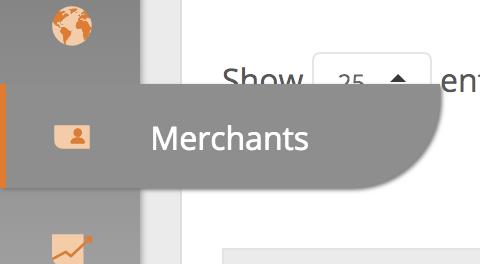
After logging in navigate to the merchants tab on the left.
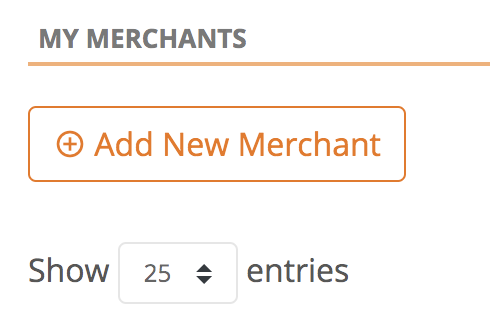
Then click the "Add New Merchant" button.
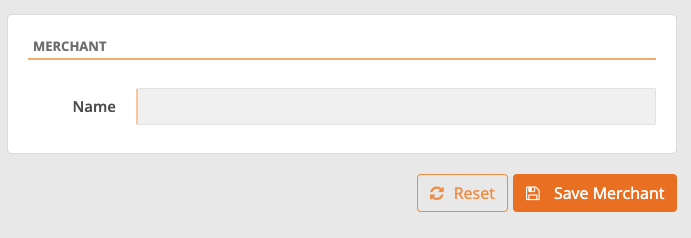
Add the name of the merchant.
If you are a merchant/CP then you will only need to create one merchant with your own name. Please see the next section for segmenting by service.
Create a New Service
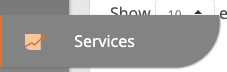
Navigate to the services tab on the left.
Then click the "Add New Service" button
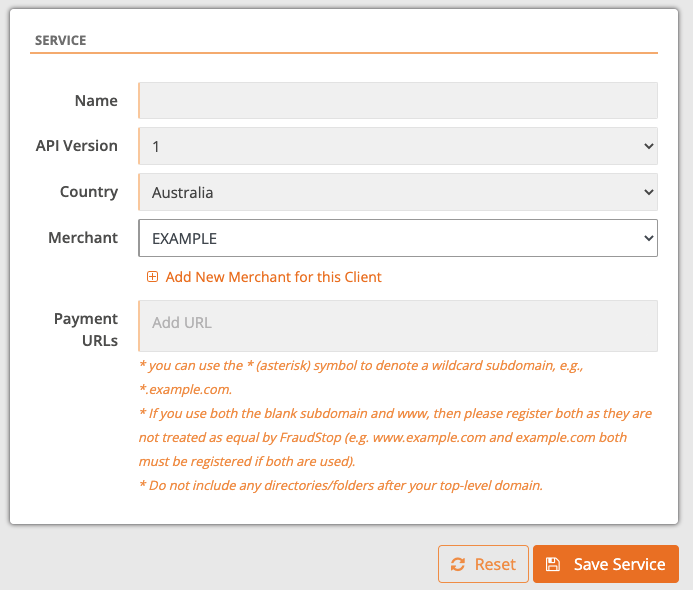
Fill out the details, with the name to be used for the segment, the country it will be used in and the URLs (including distinct subdomains, but not including folders/directories) that this segment will be authorised to run on.
Warning
Both the blank subdomain and www subdomain must be registered if used. For example www.example.com and example.com both must be registered if both are used.
Warning
Testing on localhost or a test domain must also be registered, for example localhost:3000, payment-test.test or staging.payment.com.
Copy the Generated Script
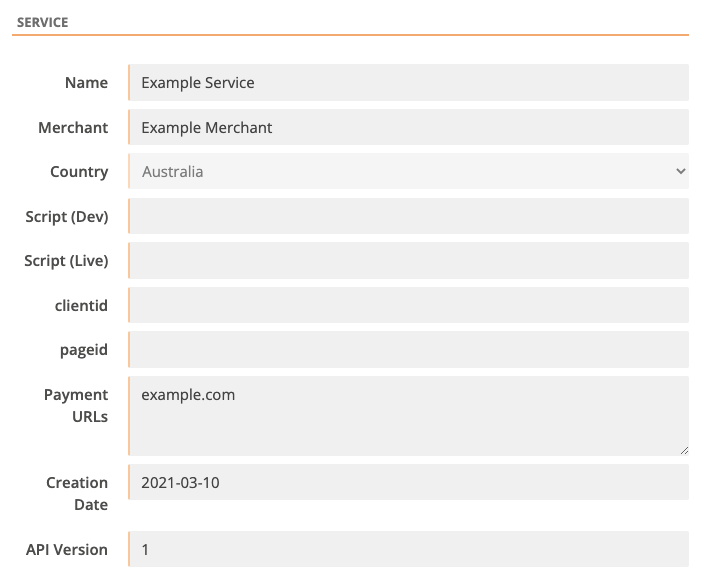
Navigate to the newly created service where the new script tags are displayed for insertion on the service's payment pages. All pages served with that script will be counted against that service.
Warning
Only use the -dev.js script during testing, dashboard statistics are not recorded for traffic using the dev script.
Warning
If you do not register a URL or use the wrong script tag on the wrong URL then FraudStop will not run. This is to prevent unauthorised domains creating tokens.